Introduction to Base64
Base64 is a text-based encoding scheme that converts binary data into a format suitable for transmission in text-based systems. It’s commonly used to embed images, audio, or other media directly into HTML, JSON, or emails.
Frequently “Un” Asked Questions
What is Base64 and Its Purpose?
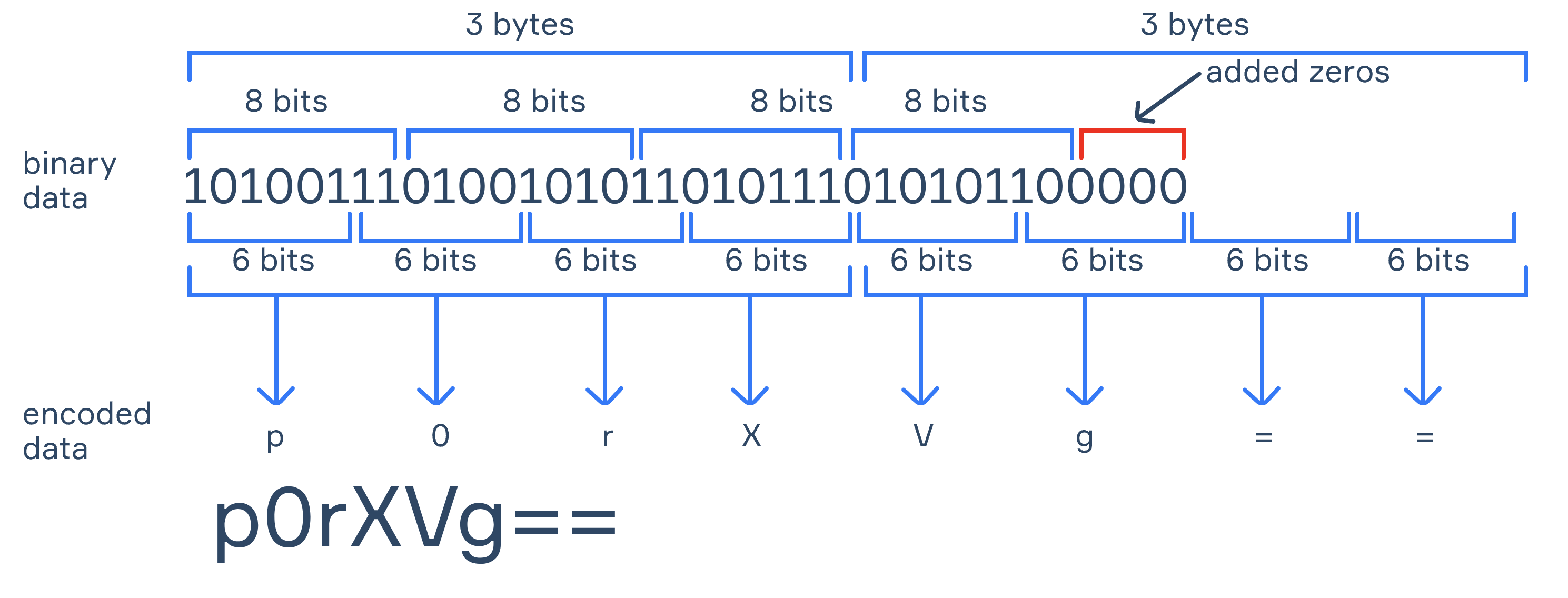
Base64 converts binary data into a readable ASCII string using a set of 64 characters. It ensures safe transmission over text-only systems but increases data size by ~33%.
Does It Compress Data or Increase Size?
Base64 increases data size due to its encoding mechanism. For every 3 bytes of data, Base64 produces 4 characters.
Where Is Base64 Used?
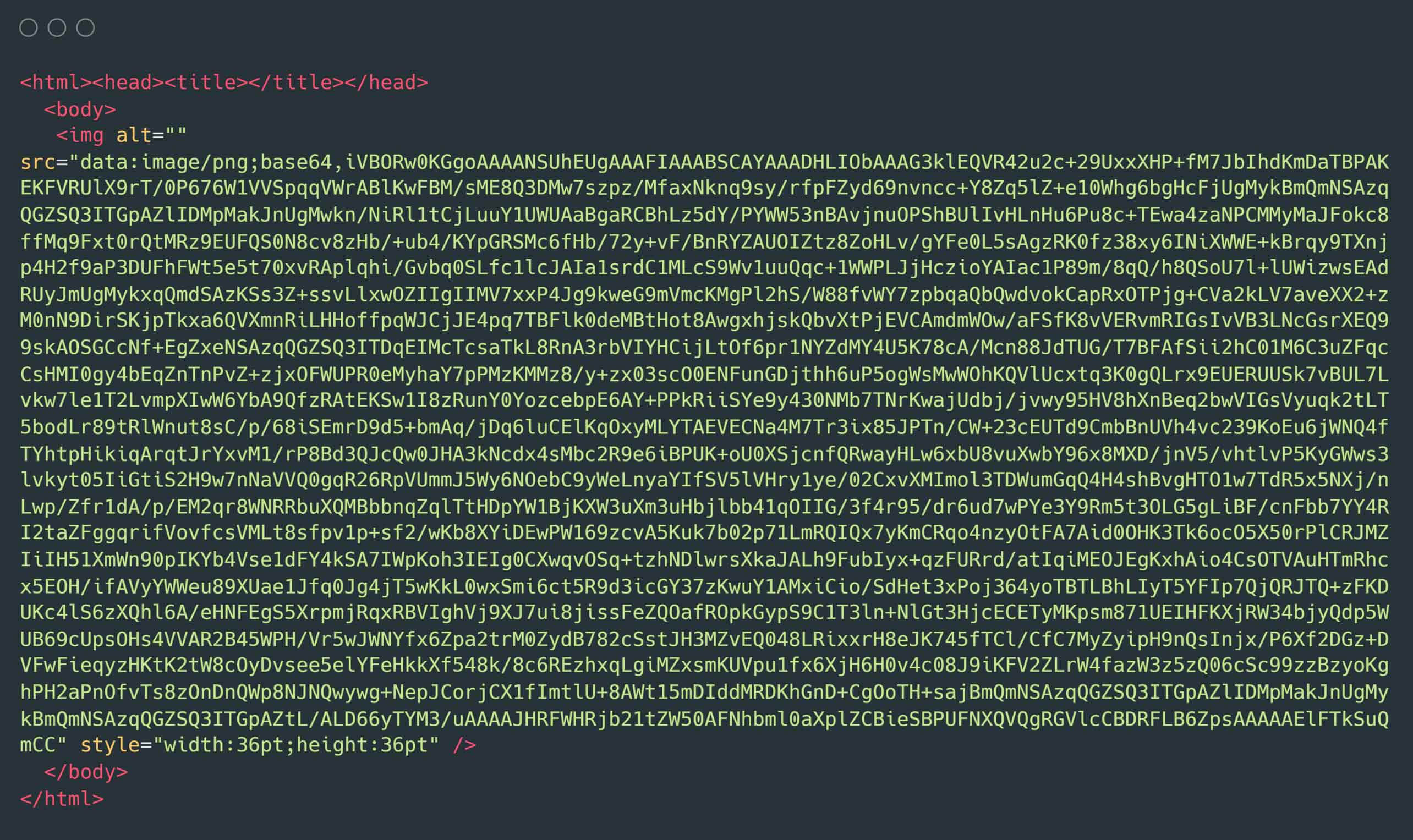
Base64 is ideal for embedding small assets in text formats, such as inline images in HTML (data:image/png;base64,...) or encoding credentials in HTTP headers.
Encoding and Decoding Base64 in JavaScript
Encoding:
const data = "Hello, World!";
const encoded = btoa(data);
console.log(encoded);
// Outputs: SGVsbG8sIFdvcmxkIQ==Decoding:
const decoded = atob(encoded);
console.log(decoded);
// Outputs: Hello, World!
Read more :
https://www.redhat.com/ja/blog/base64-encoding
https://curiousone.in/blog/how-base64-encoding-works/
Is Base64 a Blocking Operation? Encoding and decoding Base64 for large files can be blocking in single-threaded environments like javascript. Use streams for better performance when working with large data.
Behavior of Base64 with Different Media Types
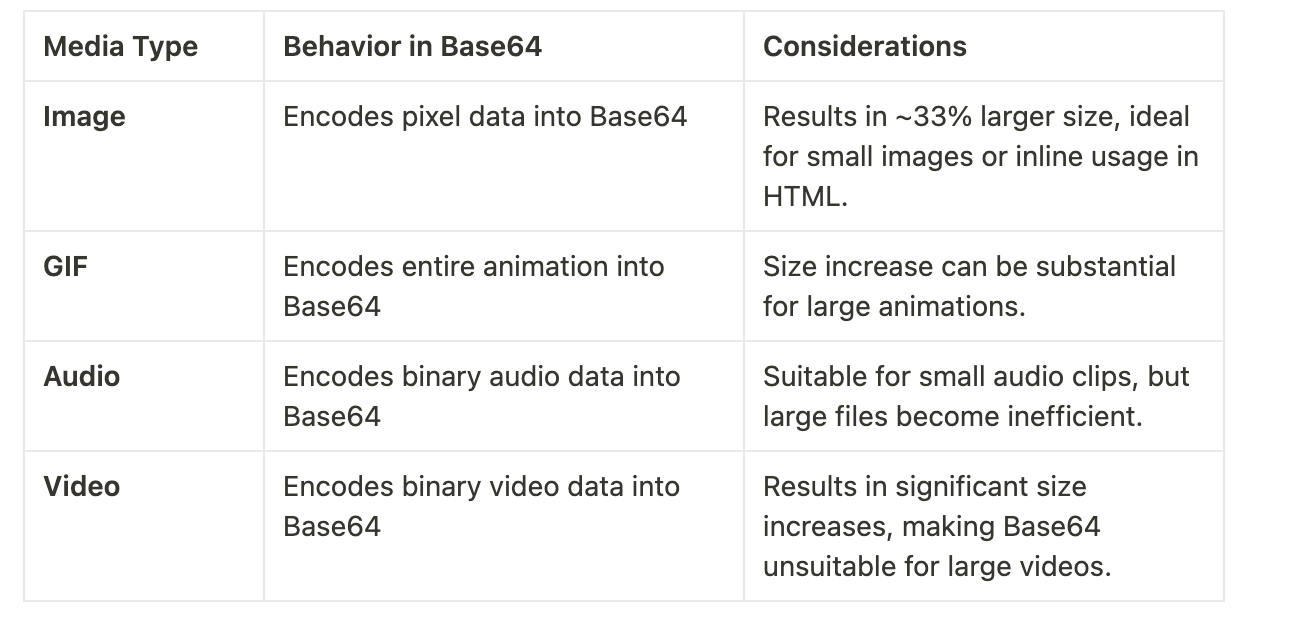
Key Points Across Media Types:
Base64 does not differentiate between media types; it treats all binary data the same.
Larger files (like videos and long audio) become impractical to encode as Base64 due to size and performance constraints.
For media requiring high efficiency (like videos or large images), raw binary transfer methods (e.g.,
FormData) are recommended. (discussed in next post)
Advantages of Base64
Simplifies embedding small assets directly in text-based systems.
Eliminates the need for additional file requests.
Compatible with JSON, HTML, and email protocols.
Disadvantages of Base64
Increases payload size by ~33%.
Inefficient for large files.
Requires more memory and bandwidth compared to raw binary data.
Sending Images/Media to Server Using Base64
Frontend Example:
const fileInput = document.querySelector('input[type="file"]');

fileInput.addEventListener('change', async () => {
    const file = fileInput.files[0];
    const reader = new FileReader();

    reader.onload = async () => {
        const base64String = reader.result.split(',')[1]; // Get the Base64 part
        await fetch('/upload', {
            method: 'POST',
            headers: { 'Content-Type': 'application/json' },
            body: JSON.stringify({ file: base64String }),
        });
    };

    reader.readAsDataURL(file);
});
Backend Example (Node.js):
const express = require('express');
const fs = require('fs');
const app = express();

app.use(express.json({ limit: '10mb' })); // Increase limit for Base64 payloads

app.post('/upload', (req, res) => {
    const { file } = req.body;
    const buffer = Buffer.from(file, 'base64');
    fs.writeFileSync('uploaded_image.png', buffer); // Save as a file
    res.send("File uploaded successfully!");
});

app.listen(3000, () => console.log('Server running on port 3000'));
Libraries for JavaScript-Based File Management
1. Multer (For File Uploads in Node.js)
Simplifies file handling in Express.js.
Automatically saves uploaded files to the disk or memory.
Install:
npm install multerUsage:
const multer = require('multer');
const upload = multer({ dest: 'uploads/' });
app.post('/upload', upload.single('file'), (req, res) => {
    res.send("File uploaded!");
});
2. Sharp (For Image Manipulation)
Resize, compress, or convert images before or after upload.
Install:
npm install sharpUsage:
const sharp = require('sharp');
sharp('input.png')
    .resize(300) // Resize to 300px width
    .toFile('output.png', (err, info) => {
        if (err) throw err;
        console.log(info);
 });
When to Use Base64
Small Media Files: Inline images, icons, or short audio clips.
Text-Based Systems: When sending data via JSON or HTML.
Prototyping: For quick demos without worrying about performance.
When Not to Use Base64
Large Files: Videos, large images, or long audio.
Performance-Critical Applications: Where efficiency matters more than convenience.
Persistent Storage: Avoid storing Base64-encoded data in databases or files.
Base64 Encoding and Decoding Tools
Beware of online tools while adding sensitive images!Online Tools
Encode and decode Base64 strings easily.
Supports text and images.
User-friendly interface for Base64 encoding, decoding, and testing.
Conclusion
Base64 is a powerful tool for specific use cases like embedding small assets in text-based systems. However, it’s not suitable for large media files due to its size overhead and performance constraints. Understanding its behavior across media types helps in making informed decisions about when and how to use it effectively.
Next Steps: In a follow-up blog, explore how FormData can be leveraged to handle large media efficiently while minimizing overhead and maximizing performance.